How Many Bits Does Your TV Process? Bit Rate Explained.
You watch all kinds of stuff on your TV every day, and each scene is filled with tons of colors.
The real magic behind showing those millions of vibrant, accurate colors are the pixels of the display.
Each pixels uses some bits to create its color.
The number of bits depends on the color bit depth of the display.
As scenes change, these bits keep switching their states to match what needs to be shown.
The source constantly sends new information to your TV in the form of bits.
With that, let’s move on to talking about bit rate.
What Is Bit Rate/ Bit Transfer Rate?
Bit rate, or bit transfer rate, refers to how many bits of audio or video data are processed each second, whether they’re being sent or received over the internet.
In context of video processing, it basically means how many bits a source, like a video streaming platform or a gaming console sends to your TV every second.
Whenever the display needs to show a new frame, it has to update the colors of its pixels.
To do that, the tiny bits that make up each pixel need fresh information.
This updated information for every single bit comes from the source.
So, to refresh the screen with a new frame, the source sends all this data bit by bit at a speed we call the bit rate.
Bit rate is usually measured in KBPS (Kilobytes per second), MBPS (Megabytes per second) or GBPS (Gigabytes per second).
And just to be clear, bit rate isn’t the same thing as frame rate.
Here’s why…
Bit rate vs Frame rate
Even though both frame rate and bit rate come from the source to your display, they’re totally different things.
Frame rate is simply how many frames or images the source sends to your TV every second.
Bit rate, on the other hand, is the amount of actual data (bits) inside those frames that gets delivered each second.
Now that we’ve cleared that up, let’s dig into how bit rate is calculated and how it affects picture quality.
How To Calculate Bit Rate?
Let’s figure out how many bits are needed to show each frame on a 4K, 60 Hz display with 10-bit color depth as an example.
First, we check how many bits one pixel needs to create its color.
Since it’s a 10-bit display, each of the three subpixels- red, green, and blue uses 10 bits.
Thus, one pixel uses 30 bits in total.
That means a single pixel needs 30 bits to display its color.
A 4K screen has 3840 × 2160 pixels, which works out to roughly 8.3 million pixels.
Since each pixel needs 30 bits to show its color, the total number of bits needed for the whole screen becomes 30 × 8.3 million, which comes out to about 249 million bits.
So one full frame needs roughly 249 million bits to appear on the display.
This means the TV needs the correct high/low state for every one of those 249 million bits in order to show a scene accurately.
Now, because the display is 60 Hz, it shows 60 frames every second.
So in one second, the total data being sent from the source to the TV is: 60 × 249 million ≈ 15,000 million bits, or 15 billion bits per second.
Now, since 1 byte = 8 bits, we divide 15,000 million by 8, giving: 15,000/8 = 1,875 million bytes per second.
And as you know, 1 GB = 1024 × 1024 × 1024 bytes, now this number comes out to be roughly 1.75 GBPS.
This represents the bit rate, or the rate at which bits are sent from the source to the display.
In simple terms, about 1.75 GBPS of data is being sent from the source to your TV every second just to show the picture you’re watching.
That also means you’ll need a cable that can handle more than this bandwidth to transfer all those bits without any issues.
Number of Bits vs Number of Colors
So how do we figure out how many colors these bits can create?
Take one pixel.
It has 10 bits for red.
That means there are 10 different “red bits,” and each one can either be ON (1) or OFF (0) depending on what shade of red color needs to be shown.
Since each bit has two possible states, the total number of red shades is: 2 × 2 × 2… (10 times) = 1024 shades of red.
The same goes for green and blue—each one also has 1024 possible shades.
Now, to find how many total colors one pixel can produce, we multiply all the combinations: 1024 × 1024 × 1024 ≈ 1.07 billion colors.
Just keep in mind that even though a pixel can produce over a billion colors, it only shows one of those colors at any given moment in a single frame.
And on a 10-bit display, that one color is made from the combination of 30 bits.
Now that you’ve got the idea, we can take this same concept and apply it to different displays to figure out how many bits they use and how many colors they can produce at various resolutions and refresh rates.
Bit Rate for 1080p, 4K and 8K Displays
A 4K screen requires four times the bit rate of a 1080p screen because it packs in four times as many pixels, provided the frame rate and bit depth stay the same.
By the same logic, an 8K display requires four times the bit rate of 4K, and sixteen times that of 1080p, when all have the same refresh rate and use the same number of bits.
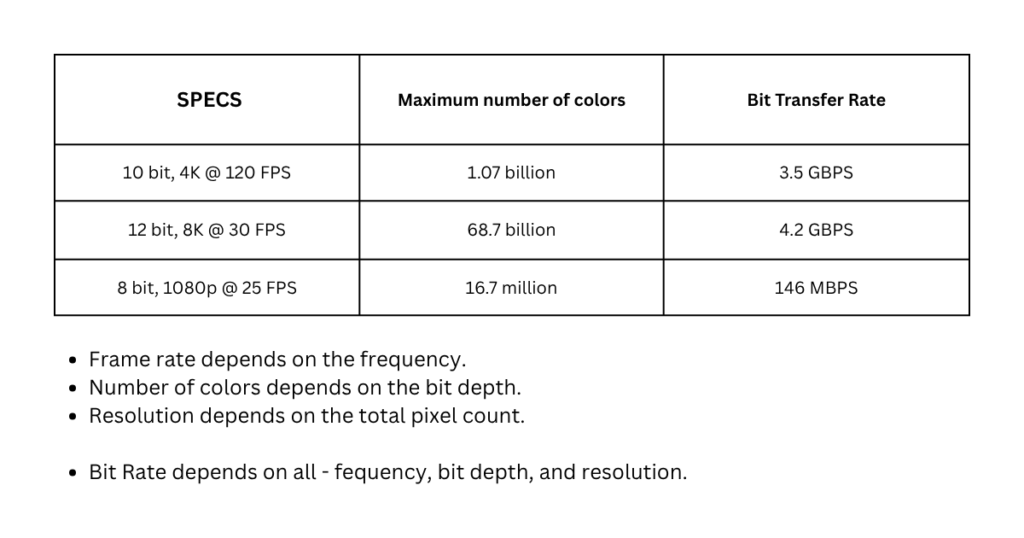
Below is a table representing the maximum number of colors and bit rate for displays of various specifications.
Resolution vs Bit Rate
Resolution and bit rate might seem to be alike, but they’re totally different aspects of picture quality.
Resolution is just the total number of pixels on the screen.
Bit rate, on the other hand, is the amount of pixel data, basically the bits that get sent from the source to your TV.
A 4K screen has about 8.3 million pixels.
So if a 10-bit, 60 Hz source (like a streaming app or console) outputs 4K, it’s actually sending 8.3 million pixels worth of data every frame, which equals 30 × 8.3 million bits.
That’s the amount of information needed to reproduce each frame accurately.And as we calculated earlier, that works out to a bit rate of roughly 1.75 GBPS.
How Does Bit Rate Affect Picture Quality?
Let’s say you’re watching a channel where the source is sending frames to your TV at a bit rate of 5 MBPS.
Now we can look at how changing the bit rate affects the picture quality.
When Bit Rate Drops
Now imagine the bit rate suddenly drops to 2 MBPS.
At this point, the source can’t send enough bit-by-bit information for every pixel.
Because of that, a large number of pixels won’t get updated properly, meaning their bits and therefore their colors won’t change the way they should.
This usually results in the picture looking more pixelated and blurrier than before.
When Bit Rate Rises
Now imagine the bit rate suddenly shoots up to 8 MBPS.
That means the source is sending a lot more data to your TV every second.
To keep up with all that information, your internet speed also needs to be fast enough.
If your ISP only gives you 6 MBPS, your TV won’t be able to download the full video stream in real time.
The result?
The video will start buffering unless you reduce the video resolution so that it requires less data.
What Is ABR?
Adaptive Bit Rate (ABR) is a feature that lets a display automatically adjust its resolution based on the bit rate it’s getting from the source.
For example, say you’re watching a 480p video and the source is sending a bit rate that matches 480p.
If the bit rate suddenly drops to what you’d expect for 240p, the TV can’t properly render 480p anymore, the picture will start looking softer and more pixelated.
A TV with ABR will detect this and drop its resolution to 240p, matching the lower-quality stream so the picture still looks clean instead of blurry.
And if the bit rate goes up again, say to a level that supports 720p resolution, the TV will bump its resolution back up to 720p to avoid buffering and keep the video playing smoothly.
The Surprising Truth: Fewer Bits Are Actually Being Sent
Even though we calculated the bit transfer rate based purely on the display’s resolution and refresh rate, in reality, all those bits might not have to be sent every single frame.
When a scene changes, only some colors or objects might change normally while the rest of the scene stays the same.
This means only a part of the picture actually needs new bit-level information, while bits in the static areas can retain the information what was already sent.
So, the bit rate we calculated earlier is really the maximum possible transfer rate assuming each individual pixel changes its color.
The actual bit transfer rate can vary a lot.
It may be high during movies with lots of fast scene changes, and low during games or videos where big parts of the background hardly move at all.